- Introduction
- Deployment Considerations
- Verification
- SIEM Integrations
- Destination Configuration
- Final Configuration
- Data Types
Introduction
Recently, Cribl began releasing REST Collector IO Packs – Packs that contain everything you need to deploy REST-based data collection for many types of data including EDR (Crowdstrike, SentinelOne, etc), Authentication (Okta, Duo, etc.), AI (OpenAI, Gemini, etc.), Microsoft Entra, and many others.
Why do this when Cribl has long had a Github repository of freely available REST Collector configurations? In short:
- IO Packs include pre-configured Collector Sources along with Event Breakers – no need to copy/paste each item.
- IO Packs leverage Pack variables to simplify configuration. For example – the Microsoft Graph Rest Collector IO Pack includes four Collector Sources, each of which requires a Tenant ID, Client ID, and Client Secret. Pack variables allow you to set these values once instead of for each Source!
- IO Packs include routes and pipelines that perform common functions like blank/null value reduction and formatting for common output formats.
- IO Packs include a detailed README with information on how to configure and deploy them as well as available tuning options.
Deployment Guide
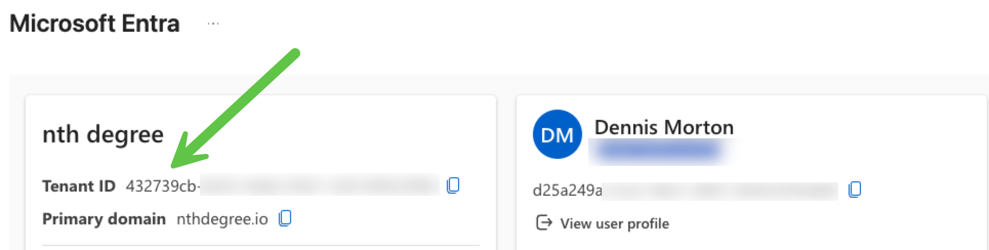
The Microsoft Graph Rest Collector IO requires a Tenant ID and properly provisioned Client ID/Client Secret. The Tenant ID is simple – it’s shown in the top left of the “Microsoft Entra admin center” page:
To create theClient ID/Client Secret, as a Microsoft Entra Administrator Click “New reigstration” from the “App registrations” page:

Once the App is registered, click on “Add a certificate or secret”:

… and then click “New client secret”:
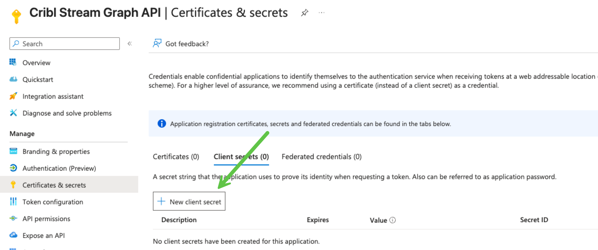
Give the Secret a Description and choose a reasonable expiration time:

After you’ve added the Secret, be sure to copy the Secret’s value before changing screens – it will not appear again!

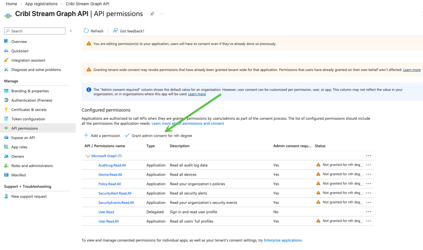
The final step is to grant the proper permissions to the App. To begin, click on “API Permissions” and perform the following:
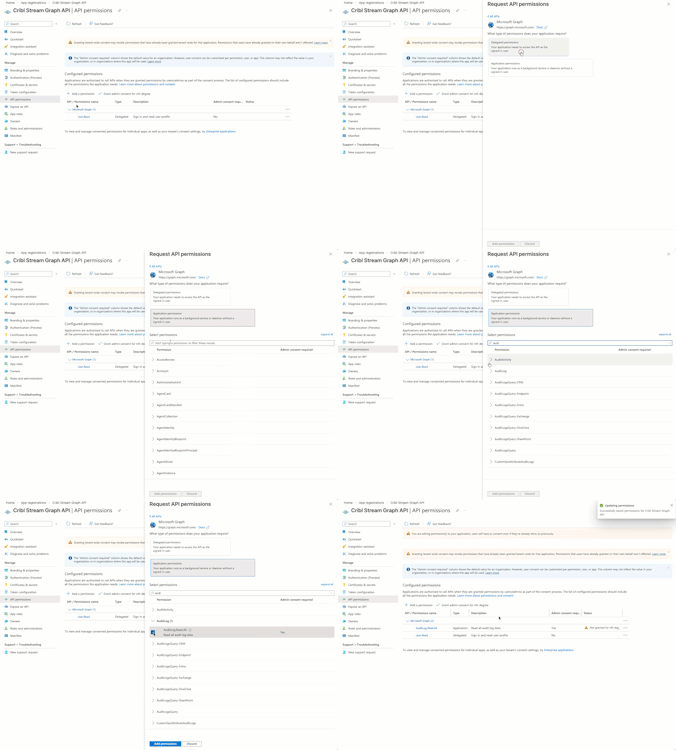
You will need to add the following Microsoft Graph permissions:
- AuditLog.Read.All
- Device.Read.All
- Policy.Read.All
- SecurityAlert.Read.All
- SecurityEvents.Read.All
- User.Read.All
If requested (like in the screenshot below), be sure and grant admin consent as well!
In the Microsoft Graph Rest Collector IO Pack, navigate to Knowledge->Variables and enter yourTenant ID, Client ID, and Client Secret.

Before proceeding with the next step, you must perform a Commit/Deploy – this ensures the Worker Group members have all the necessary configuration items.
Verification
The in_azure_graph_security_alerts Collector uses a deprecated endpoint. While it might still work, you should only use the in_azure_graph_security_alerts_v2 Collector.
For each of the three Collectors, perform a Run (use the default settings) to ensure there are no issues. Each of them should return events like below:

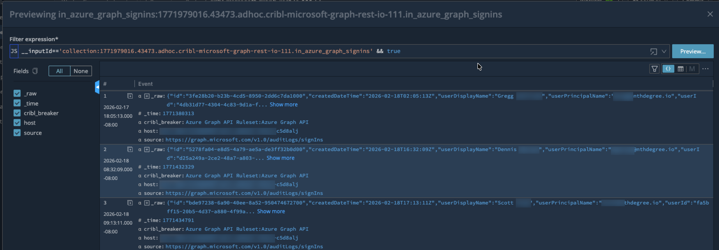
You may also want to save each of the runs as a sample file for use later in case you need to update the pipeline(s) based on your own data.
SIEM Integrations
The Microsoft Graph Rest Collector IO Pack ships with two SIEM output format options – Splunk and OCSF. It’s critical that only one is enabled since they conflict with each other. The output must be set for each of the four pipelines: cribl_azure_graph_signins, cribl_azure_graph_alerts_v2, cribl_azure_graph_users, and cribl_azure_graph_devices.
Splunk
To configure Splunk as the destination format, enable the following two Pipeline Functions:
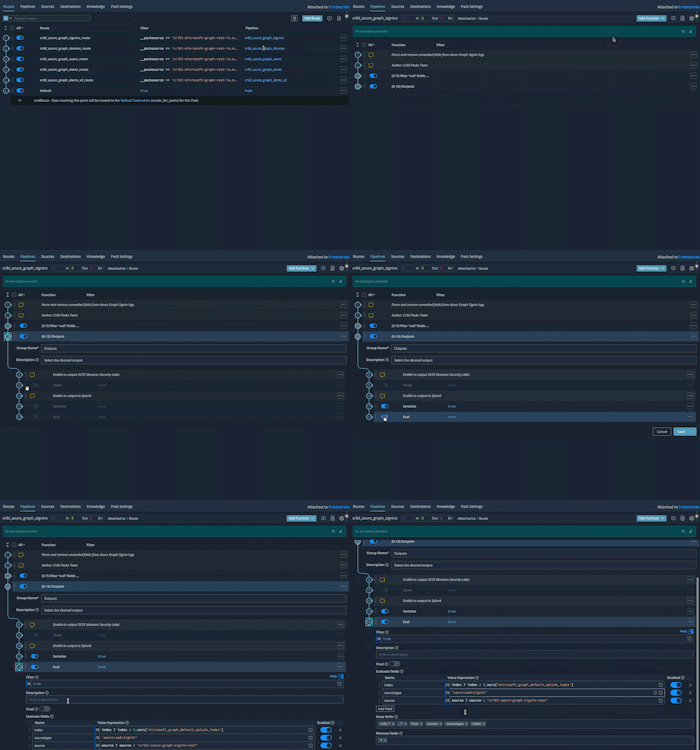
You can adjust the values of the Splunk index by modifying the microsoft_graph_default_splunk_index variable. The sourcetype value should not be changed – it is set to the value expected by the Splunk Add on for Microsoft Azure.
Though the Splunk Add on for Microsoft Azure has been deprecated, the props/transforms still work fine. If you would like to use the latest Splunk Add-on for Microsoft Cloud Services instead, you must change this value to azure:monitor:aadfor the Signins pipeline.

OCSF
To configure OCSF as the output format, enable the following Chain function:

Destination Configuration
The Pack’s routes come pre-configured to send all events to the Worker Group’s Routes. This means that you must add a Worker Group-level routing entry that sends the Pack data to your desired Destination(s). Since you also must choose a pipeline, you can either just use passthru or create your own “Pack Post-processing” pipeline!
If you are upgrading from a previous version of the Pack and already have a Default Destination configured, you can update the Pack Route Destinations to default:default to continue using this configuration.
Final Configuration
Now that everything is tested, the output format has been set, and the Destination(s) chosen, all that remains is to schedule the Collectors. If you are happy with the following defaults then just choose Schedule->Enabled and then click Save.
- AlertsV2: Every 5 minutes with State Tracking enabled. The first run will gather the previous 7 days of Alert data.
- Signins: Every 5 minutes with State Tracking enabled. The first run will gather the previous 7 days of Alert data.
- Users: Once/day with no State Tracking.
- Devices: Once/day with no State Tracking.

Data Types
The Microsoft Graph Rest Collector IO Pack includes support for four data sources:
Alerts V2
The “new” Alerts V2 endpoint includes all MS Entra alerts along with any “evidence” data. See here for a list of key fields. The classification, severity, and evidence fields are of particular interest.
This Collector should be run often (defaults to every 5 minutes) so that Alerts are ingested soon after they are generated.
SignIns
This endpoint collects authentication events for tenant. Note the following caveat from the documentation, though:
Sign-ins that are interactive in nature (where a username/password is passed as part of auth token) and successful federated sign-ins are currently included in the sign-in logs.
This means that other SignIn types – such as non-interactive – will not be returned by this endpoint. Look for a future blog post on how to gather these logs via Cribl!
This Collector should be run often (defaults to every 5 minutes) so that Signins are ingested soon after they are generated.
Users
The users endpoint collects user account information such as name, job title, email, userPrincipalName, etc, which is useful for providing context for a SIEM.
This Collector will ingest all user accounts each time it runs, so it should be run no more than once/day (the default).
Devices
This endpoint collects Azure AD device data such as type, os, owner, compliance status, etc, which is useful for providing asset metadata for a SIEM.
This Collector will ingest all devices each time it runs, so it should be run no more than once/day (the default).
Dennis Morton
Principal Consultant
dmorton@nthdegree.io